
Carter Hendrick
CYSE 301
9/30/24
Assignment #2
Task A:
Q1. How many packets are captured in total? How many packets are displayed?
Total Packets: 132
Total Packets Displayed: 132
Q2. Apply “ICMP” as a display filter in Wireshark. Then repeat the previous question (Q1).
ICMP filter packets: 24
Q3. Select an Echo (replay) message from the list. What are the source and destination IPs of this packet? What are the sequence number and the size of the data? What is the response time?
Echo message: source 192.168.217.3, Destination: 192.168.10.18, Sequence #: 1/256, Size: 98 bytes, 784 bits, response time: 0.002151500 seconds
Q4. Apply “DNS” as a display filter in Wireshark. How many packets are displayed?
DNS packets displayed: 104
Q5. Find a DNS query packet. What is the domain name this host is trying to resolve? What is the source IP and port number, destination IP and port number? Please express in the format: IP: port.
Domain Name: contile.services.mozilla.com
Source IP: 192.168.217.3: Port 40864 Destination IP: 192.168.217.2 Port: 53
Q6. Find the corresponding DNS response to the query you selected at the previous step, and what is the source IP and port number, destination IP and port number? What is the message replied from the DNS server?
Source IP: 192.168.217.2 Port: 53, Destination IP: 192.168.217.3 Port: 40864
Response: Refused
1. Sniff ICMP traffic (10 + 10 = 20 points)
Open two terminals on External Kali VM. Use one ping Ubuntu VM and use the other ping
Internal Kali.
a. Apply proper display or capture filter on Internal Kali VM to show active ICMP traffic.
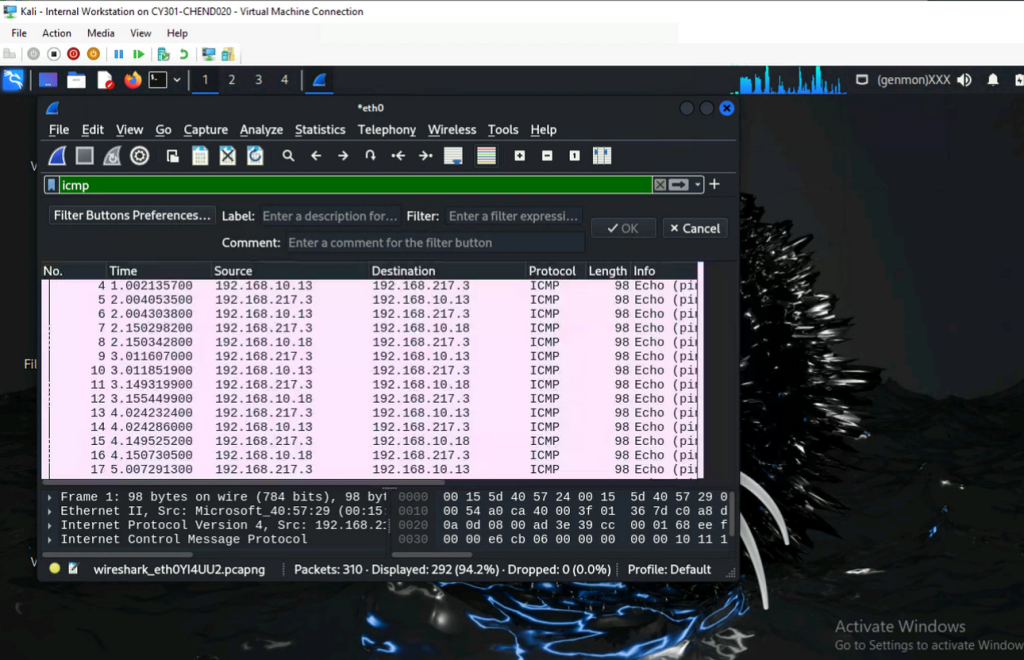
b. Apply a proper display or capture filter on the internal Kali VM that ONLY displays the
ICMP request that originated from the external Kali VM and goes to the Ubuntu 64-bit
VM.
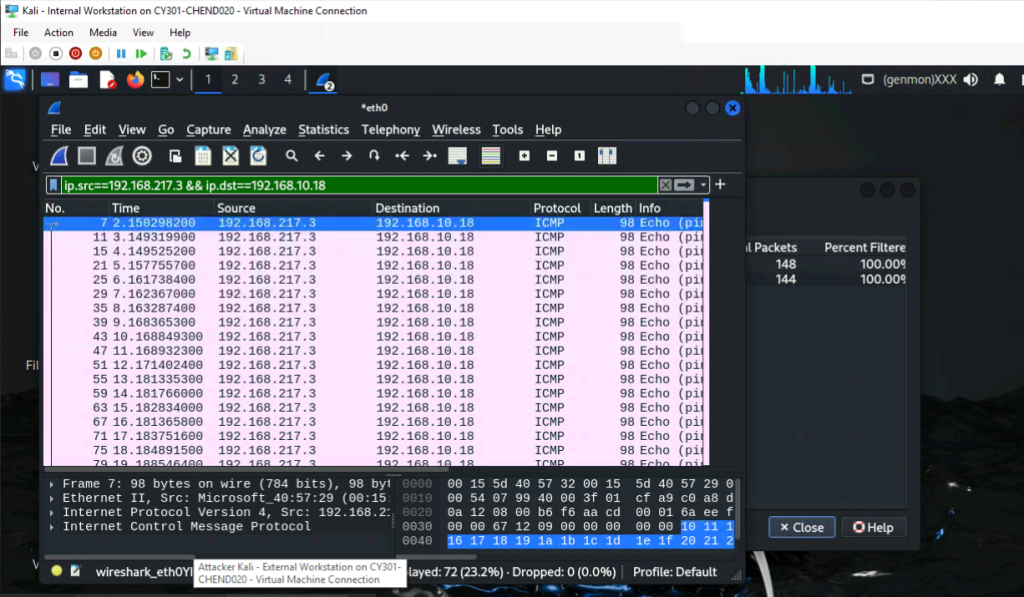
*I Applied this filter by going to Statistics, then conversations, selected the External kali to ubuntu conversation and selected the A B option and applied it from there.
2. Sniff FTP traffic
a. Ubuntu VM is also serving as an FTP server inside the LAN network. Now, you need to
use External Kali to access this FTP server by using the command: ftp [ip_addr of ubuntu
VM]. The username for the FTP server is cyse301, and the password is password.
b. Unfortunately, Internal Kali, the attacker, is also sniffing into the communication.
Therefore, all of your communication is exposed to the attacker. Now, you need to find
out the password used by External Kali to access the FTP server from the intercepted
traffic on Internal Kali. You need to take a screenshot and explain how you found the
password.
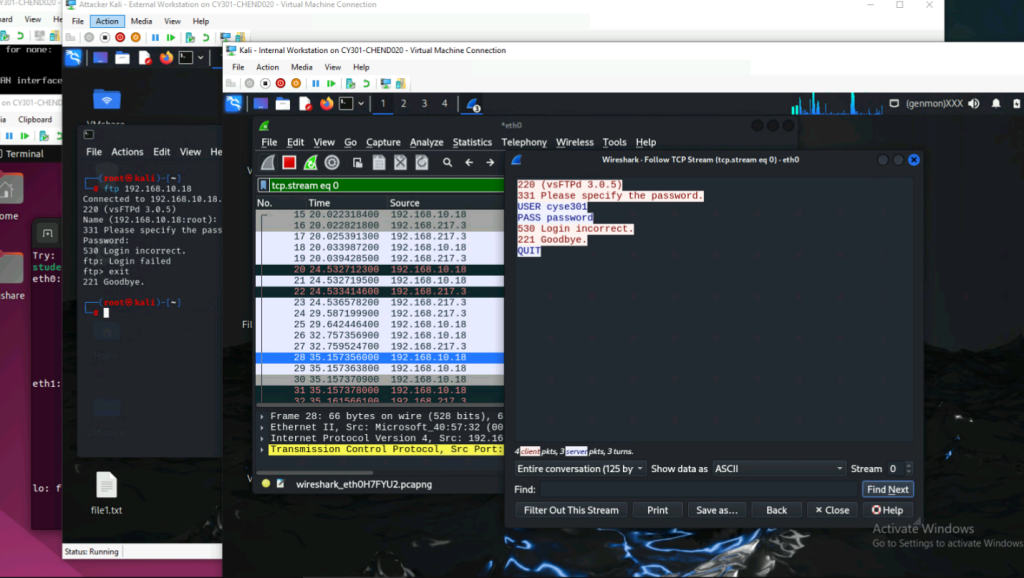
*For some reason the password was not working or I missed something
To find this information, I followed the packets until I saw the packets that had codes like 210,230, and 331 which were codes also shown when attempting to gain access to the FTP server. Then I noticed the “Hidden segment” packet that was under the request password. I right clicked that packet then went to follow and clicked the option for the TCP stream which then showed me the entire interaction between the connection of the external Kali machine and the FTP server of the Ubuntu machine.
c. After you successfully find the username & password from the FTP traffic, repeat the
previous step (2.a), and use your MIDAS ID as the username and UIN as the password to
access the FTP server from External Kali. Although External Kali may not access the
FTP server, you need to intercept the packets containing these “secrets” from the
attacker VM, which is Internal Kali.
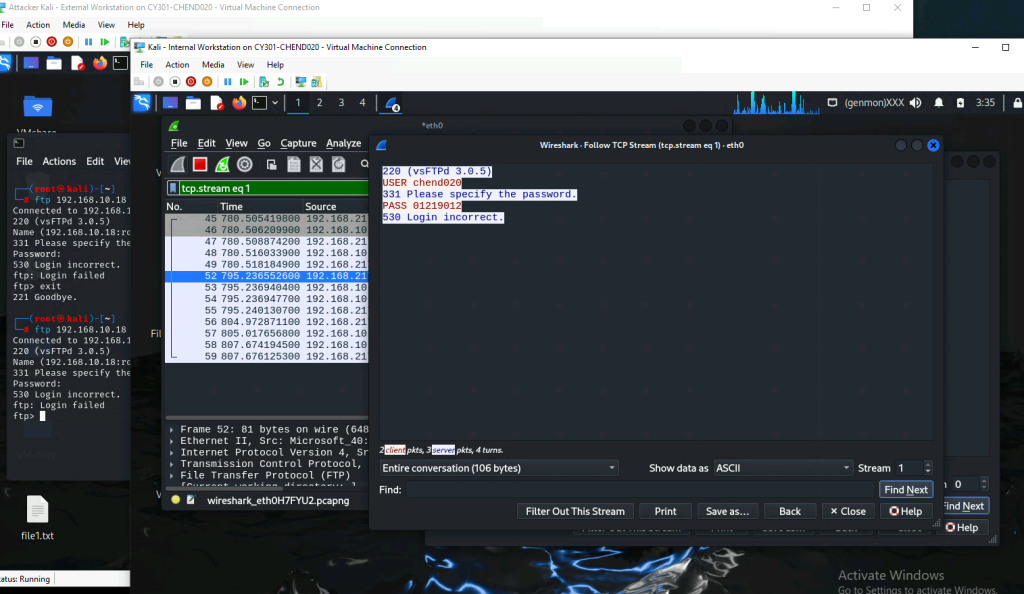
For this one I did the same thing but instead went straight to the USER request and followed the TCP stream which showed me the rest of the interaction