Windows Fundamentals 1
This lab covered basic Windows features through TryHackMe. I explored the desktop and changed which buttons appeared on the taskbar. I also looked through Control Panel and opened Task Manager.
The lab included questions about NTFS and BitLocker. NTFS supports file permissions. BitLocker encrypts a drive to help protect its contents if a computer is lost or stolen. I had studied these for Security+, so it was useful to review them in a Windows lab.
I checked a local user account and looked at its group membership. This showed me where to find information about the groups a user belongs to. I also reviewed User Account Control and how it asks for permission when a program needs to make system changes.
What I Learned
This lab gave me practice finding settings I might need when helping someone with their computer. Task Manager was one example. I can use it to check running programs and see how much CPU or memory they are using.
Checking the local account also helped me understand how group membership relates to access. An account’s name does not tell me everything about what it can do. I need to check its groups and permissions too.
Windows Fundamentals 2
The second lab focused on Windows administration tools. I explored System Configuration and reviewed its tabs. I looked at the services and the tools available from that window.
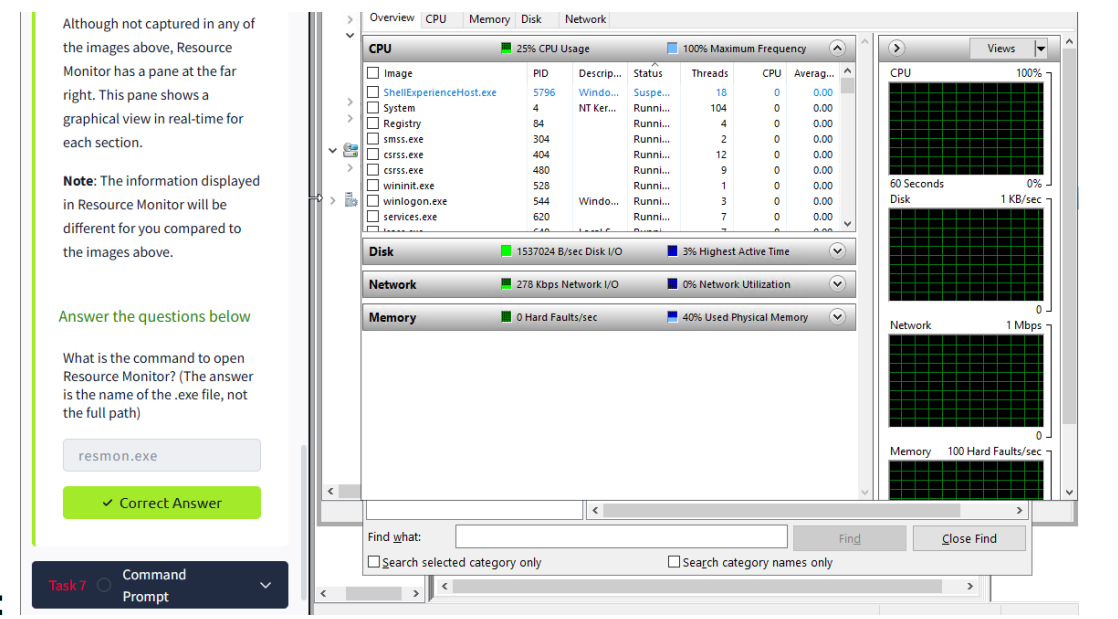
I used Computer Management to review scheduled tasks and shared folders. I also used System Information to find details about the computer. Resource Monitor showed how processes were using the computer’s resources.
The Command Prompt section covered commands for checking system and network information. I reviewed how adding a parameter such as /all gives more detailed output. The lab also covered Registry Editor and the settings stored in the Windows Registry.
What I Learned
These tools give me different places to look when something is wrong with a computer. If a program is using too many resources, I can check Task Manager or Resource Monitor. If I need details about the system, I can open System Information.
I also reviewed the different UAC notification levels. Changing those settings affects when Windows asks the user to approve a change. That helped me understand why an administration setting can also be a security setting.
What I Took Away
I use Windows regularly, but these labs had me look more closely at its built-in tools. Some tasks were about finding information. Others showed where account access and security settings are managed.
I would use these tools to gather information before making changes during troubleshooting. Checking the system first would help me decide what to do next. I still need practice, but I now have more tools to work with.
Lab Reports
Windows Fundamentals 1 – Hands On Lab 3
Windows Fundamentals 2 – Lab Report