This is a step by step of how I set up my Kali Linux UFW Firewall
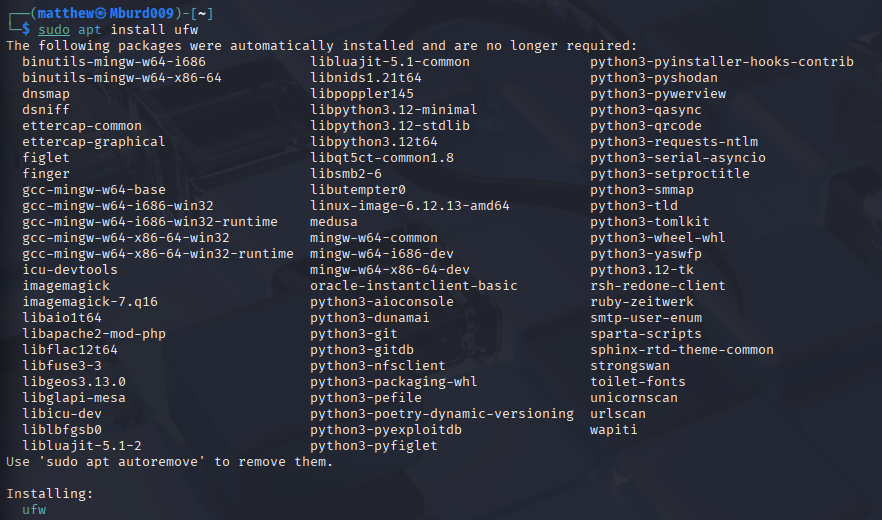
1. Install UFW
Install UFW (Uncomplicated Firewall), which provides an easier way to manage Linux firewall rules.
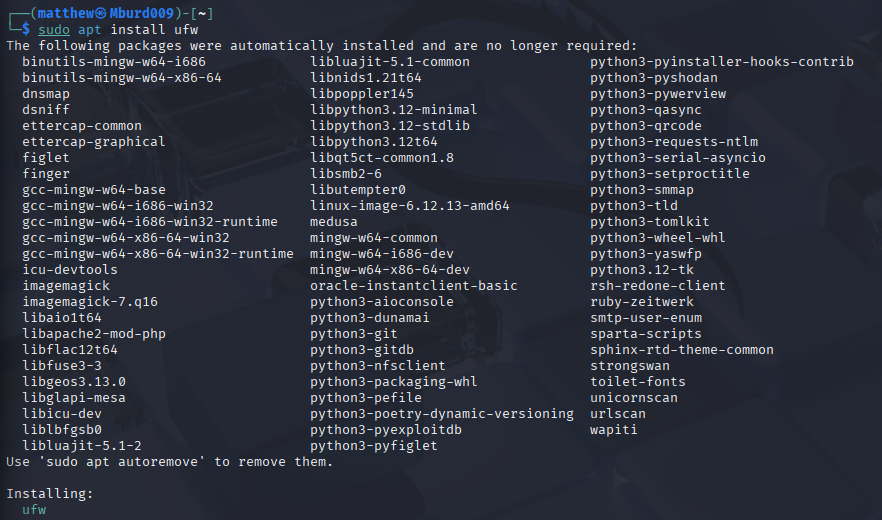
2. Install UFW
Install UFW (Uncomplicated Firewall), which provides an easier way to manage Linux firewall rules.
3. Set UFW to deny Incoming traffic
Configure the firewall to deny incoming connections by default.

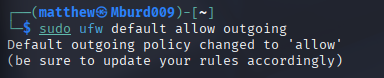
4. Set UFW to allow outgoing traffic
Allow Kali to initiate outgoing network connections.
This allows normal activities such as:
- Browsing the Internet
- Downloading updates
- Installing packages
- Connecting to external services
The combination of denying incoming traffic while allowing outgoing traffic is common for a workstation.
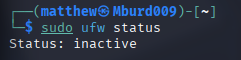
5. View Firewall Status (inactive)
Check the current status of UFW.
6. Enable UFW logging
Enable firewall logging so that relevant firewall activity can be recorded.
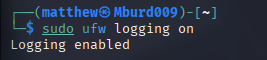
7. View Open Ports (I currently have none, so I don’t need any allow rules.
Check which network ports are currently being used by services on Kali.
My system did not show any listening network ports. Because I currently had no services listening for incoming connections, I did not need to create any inbound allow rules

8. Enable the firewall (Mine is enabled on system startup)
Enable UFW after configuring the basic policies.

9. Verify the Configuration
Check the firewall’s detailed configuration.
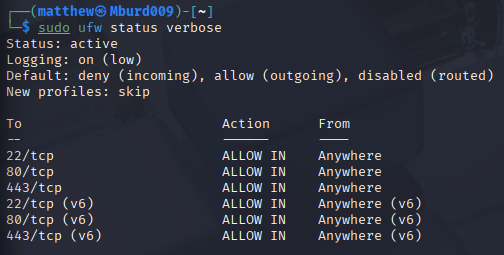
10. Delete the allow list for any unneeded ports.
These correspond to commonly used services such as SSH, HTTP, and HTTPS.
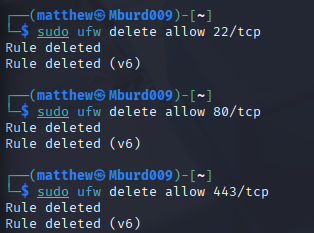
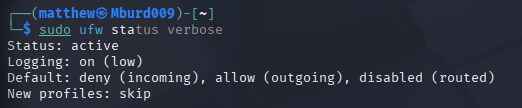
11. Verify…
This confirmed that:
- UFW was active.
- Logging was enabled.
- Incoming traffic was denied by default.
- Outgoing traffic was allowed by default.
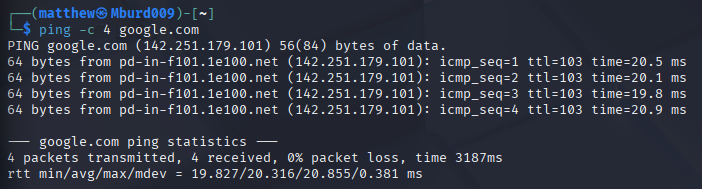
12. Now, test the firewall. Confirm internet access
Test outgoing connectivity to make sure the firewall did not interfere with normal Internet access.
13. Recheck the status of the firewall
Finally, verify that UFW remains active:
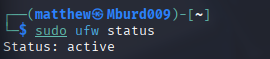
The firewall is now set up properly!