Step 1: I used the command, sudo ls /dev/sd*, to see the current hard disk devices.

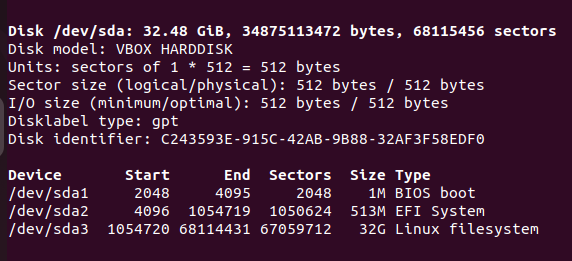
Step 2: I used the command, sudo fdisk -l, to list the hard disk partitions.
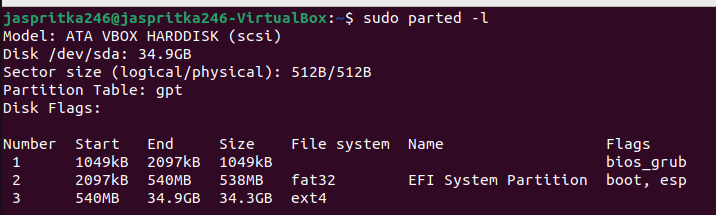
Step 3: I used the command, sudo parted -l, to list the partition table.
Step 4: I made a new virtual hard disk named “jkaur005.vdi” with 300 MBs.
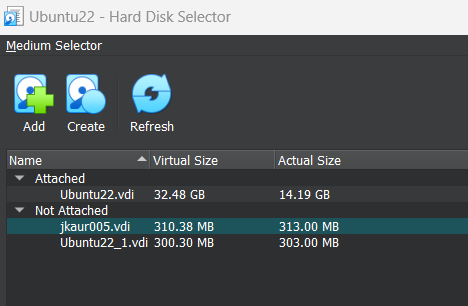
Step 5: Loaded the new hard disk to the virtual machine.
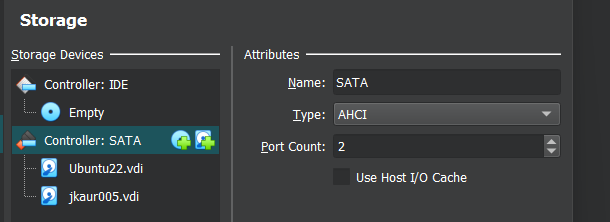
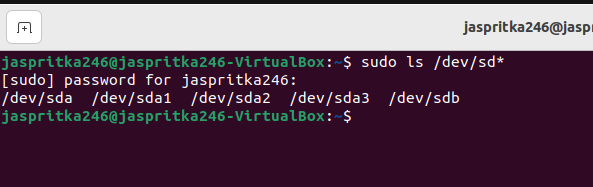
Step 6: I used the command, sudo ls /dev/sd*, to see the current hard disk devices.
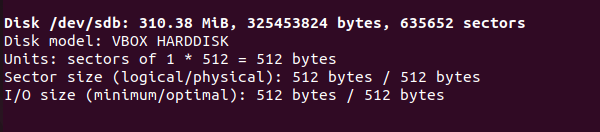
I used the command, sudo fdisk -l, to list the hard disk partitions.
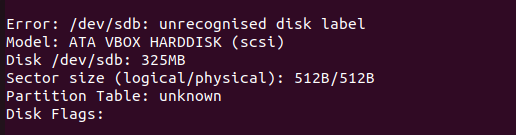
I used the command, sudo parted -l, to list the partition table.
Step 7: I used the command, sudo fdisk /dev/sdb, to create a new primary partition on the new virtual hard disk.
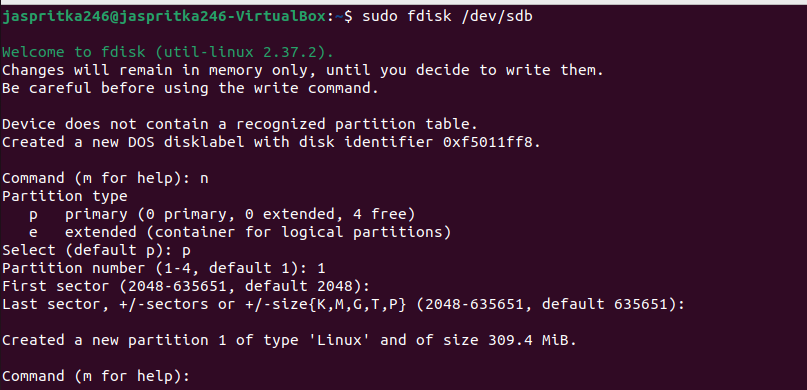
Step 8: I used the command, sudo mkfs.ext4 /dev/sdb1, to create an ext4 filesystem on the new partition.
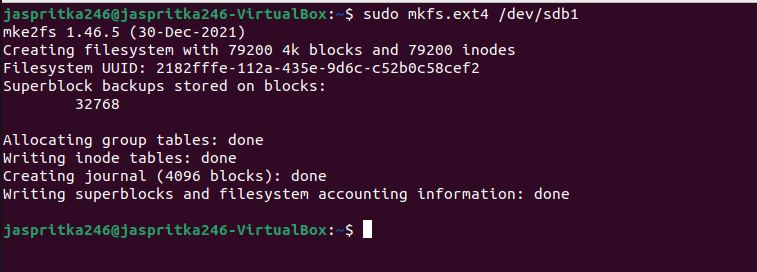
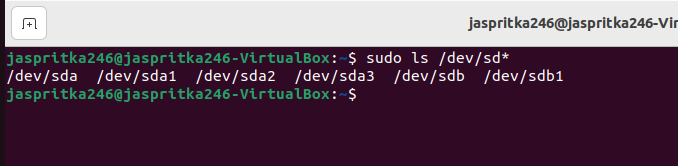
Step 9: I used the command, sudo ls /dev/sd*, to see the current hard disk devices.
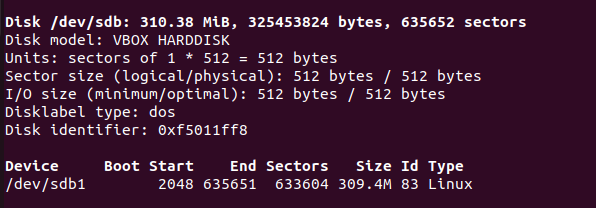
I used the command, sudo fdisk -l, to list the hard disk partitions.
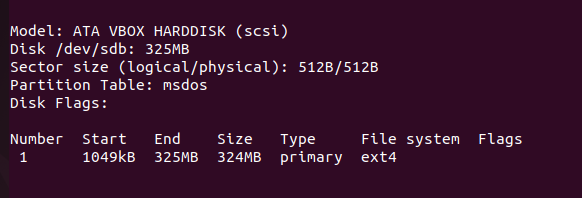
I used the command, sudo parted -l, to list the partition table.
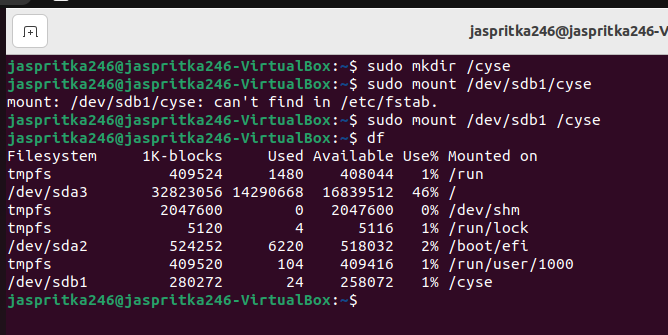
Step 10-11: I used the command, sudo mkdir /cyse, to make a new directory. I used the command, sudo mount /dev/sdb1 /cyse, to mount the new partition under the new directory. I used the command, df, to check the mounting point of the new partition.
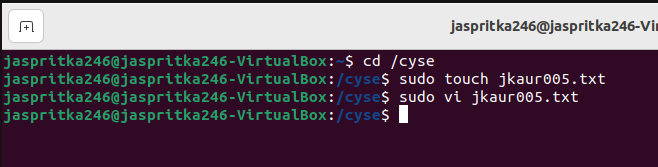
Step 12: I used the command, sudo touch jkaur005.txt, to make a new file and used vi editor to put my name in the file.
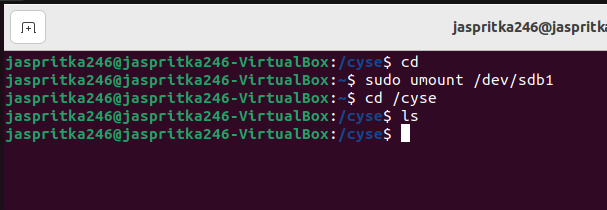
Step 13-14: I used the command, sudo umount /dev/sdb1, to unmount the /cyse directory. The /cyse directory was empty after unmounting it.