TASK A:
- Use Nmap to profile the basic information about the subnet topology (including open ports information, operation systems, etc.) You need to get the service and backend software information associated with each opening port in each VM.
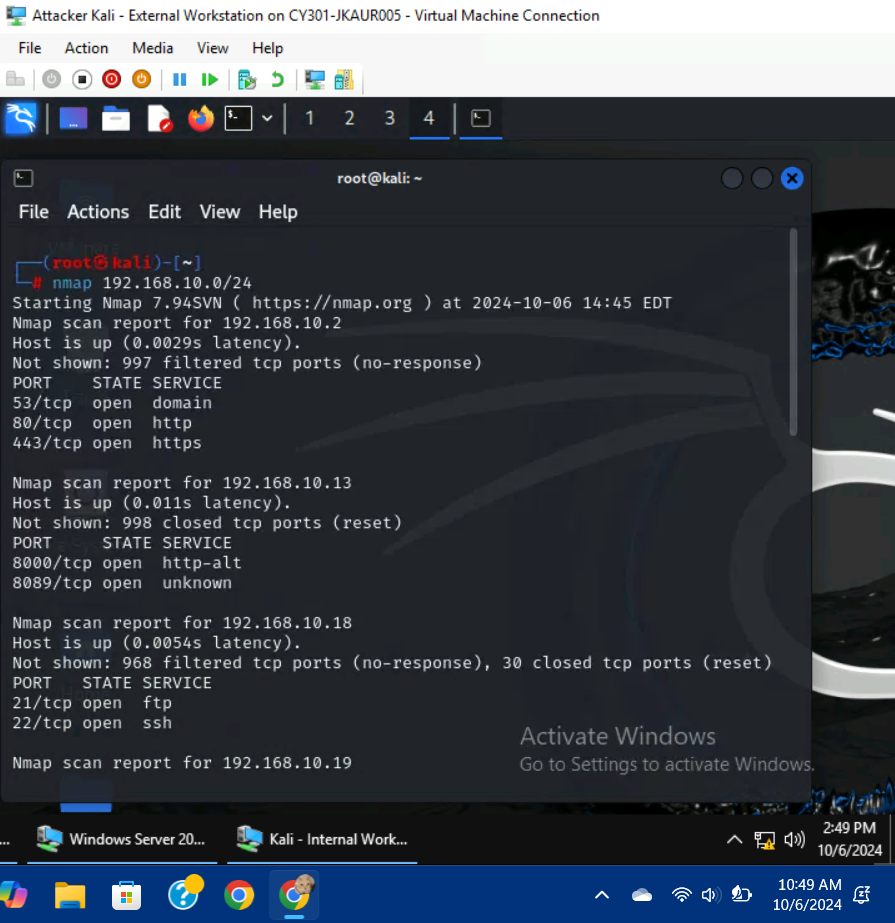
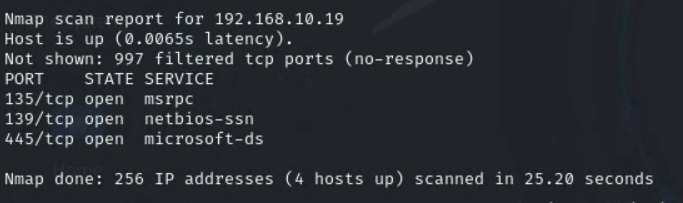
I used the command, nmap 192.168.10.0/24 to scan the subnet topology, which showed me the open ports of the available VMs.
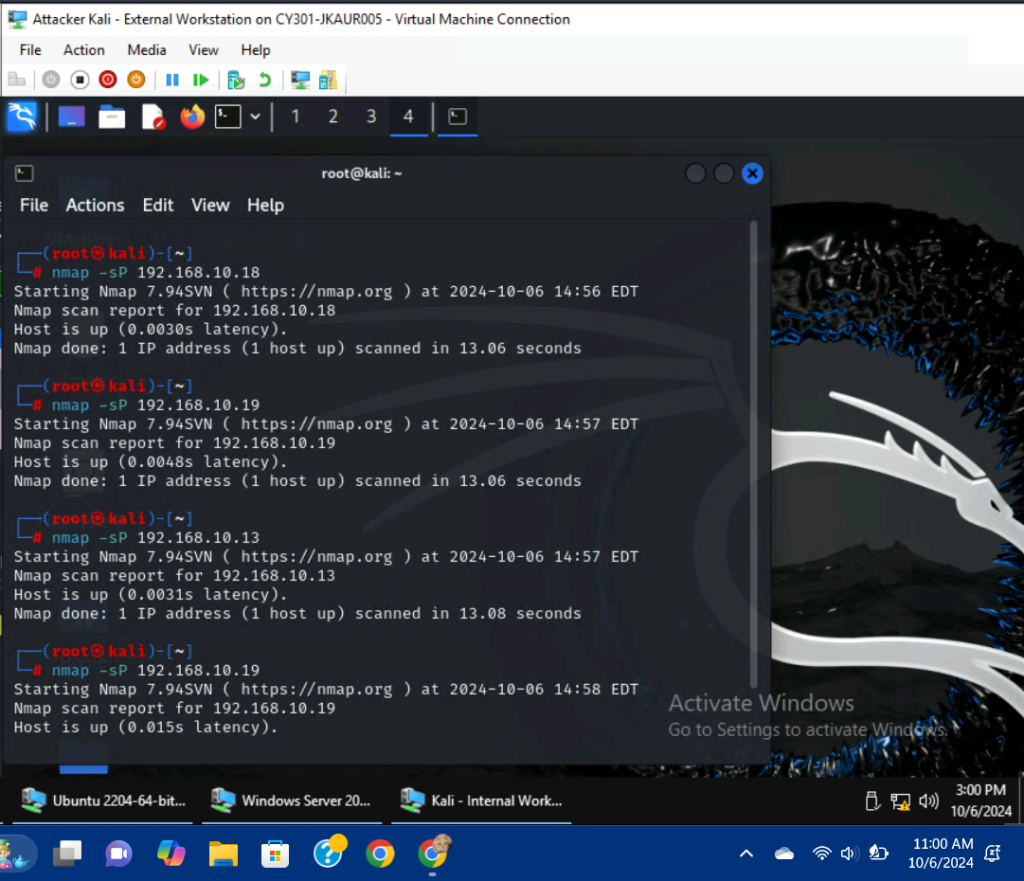
I used the commands, nmap -sP 192.168.10.18, nmap 192.168.10.19, and nmap 192.168.10.13 to discover wether or not the hosts were active. All of the powered-on hosts were up.
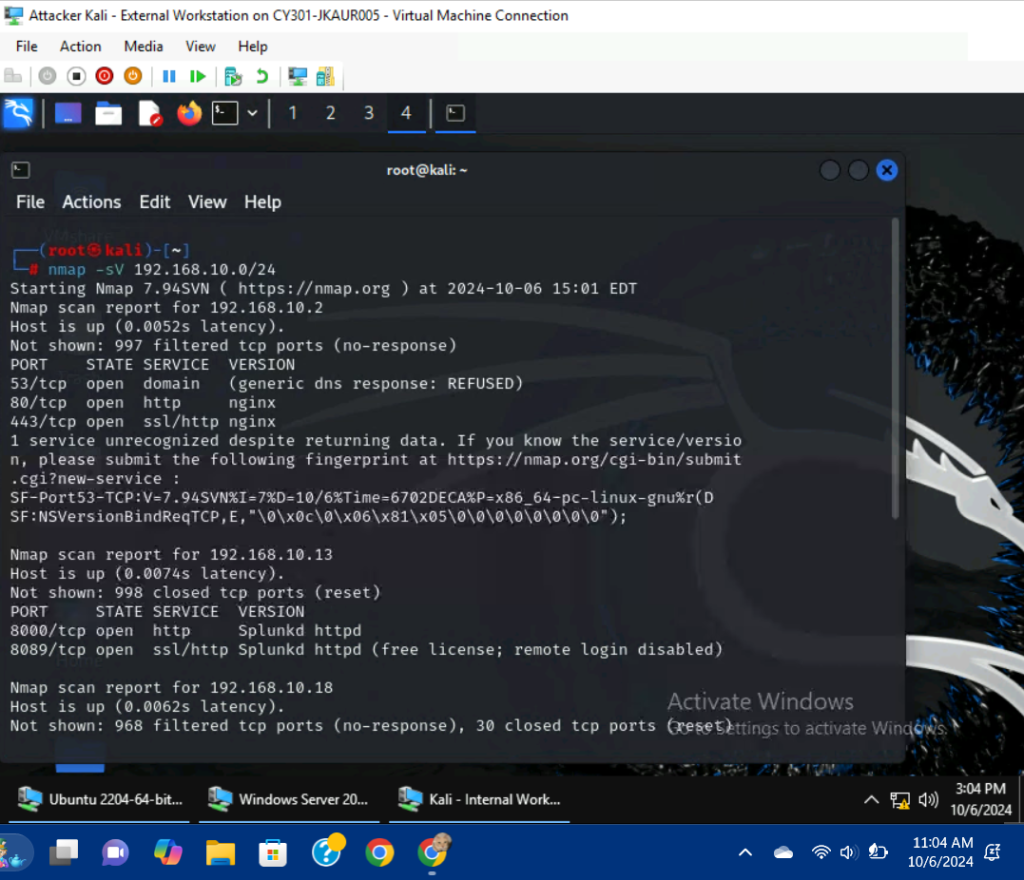
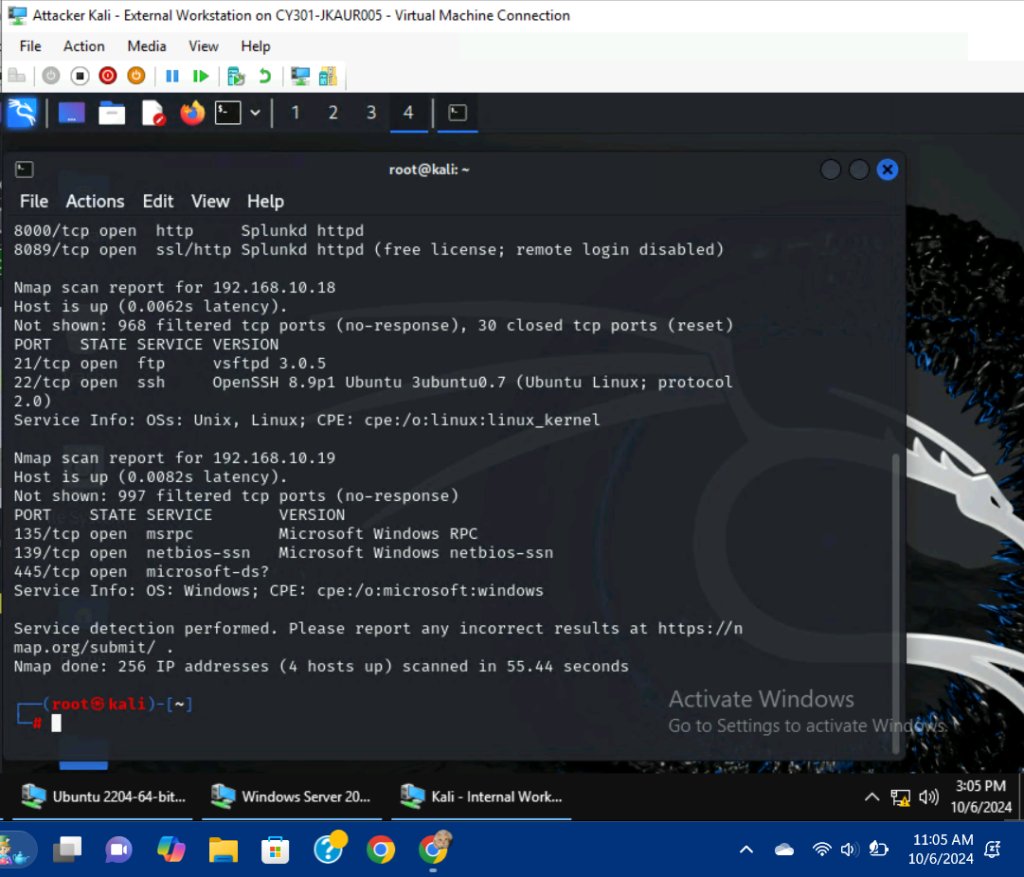
I used the command, nmap -sV 192.168.10.0/24 to scan the version/port information behind each VM in the LAN.
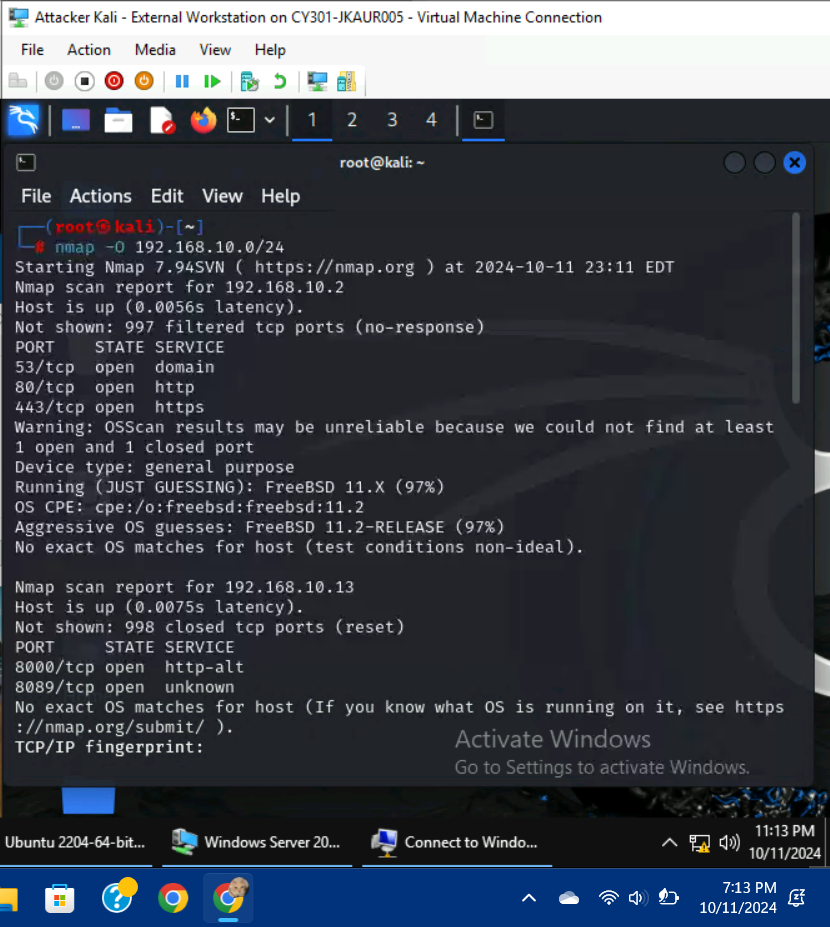
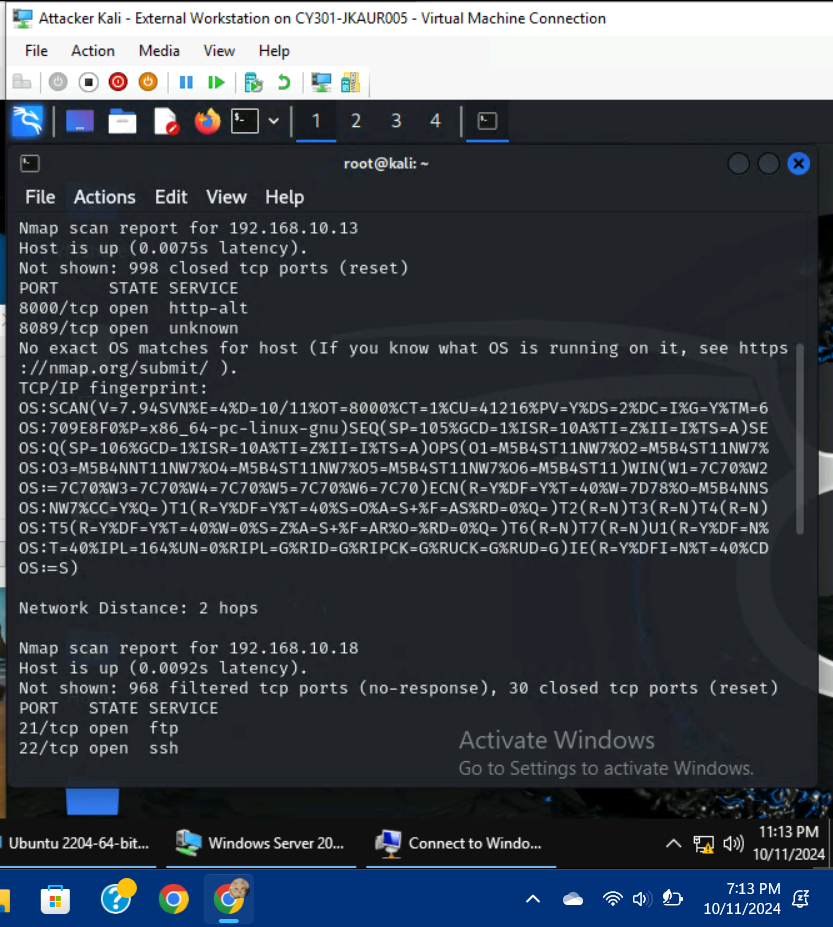
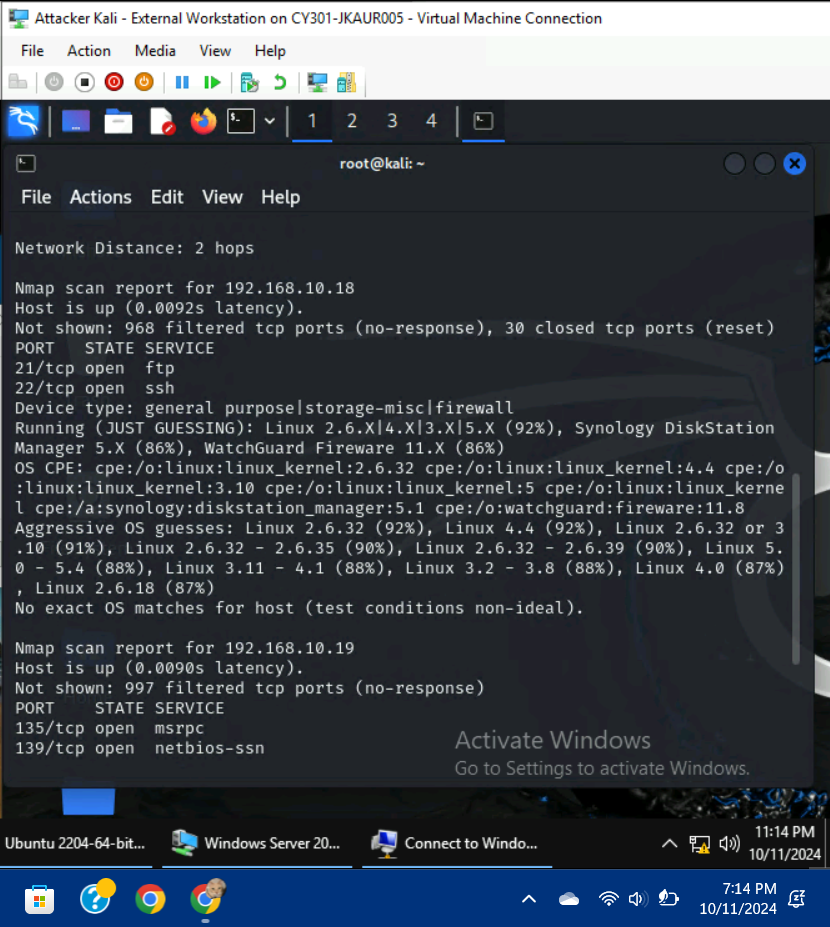
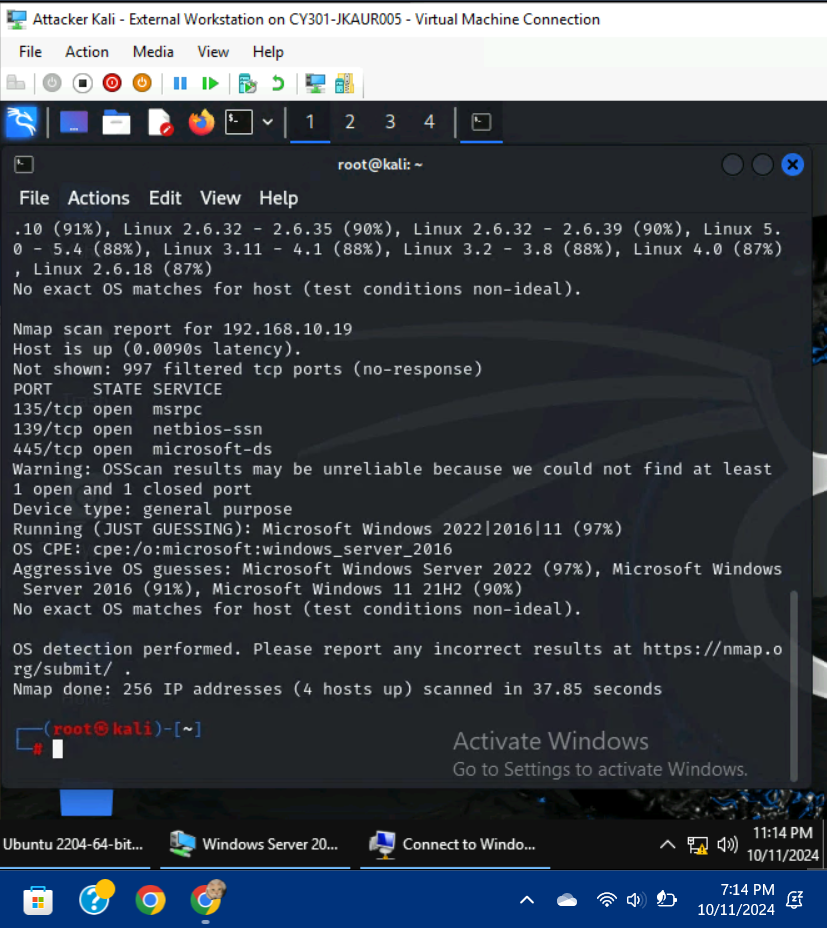
I used the command, nmap -O 192.168.10.0/24 to scan the OS information behind each VM in the LAN.
- Run Wireshark in Internal Kali VM while External Kali is scanning the network. Discuss the traffic pattern you observed. What do you find?
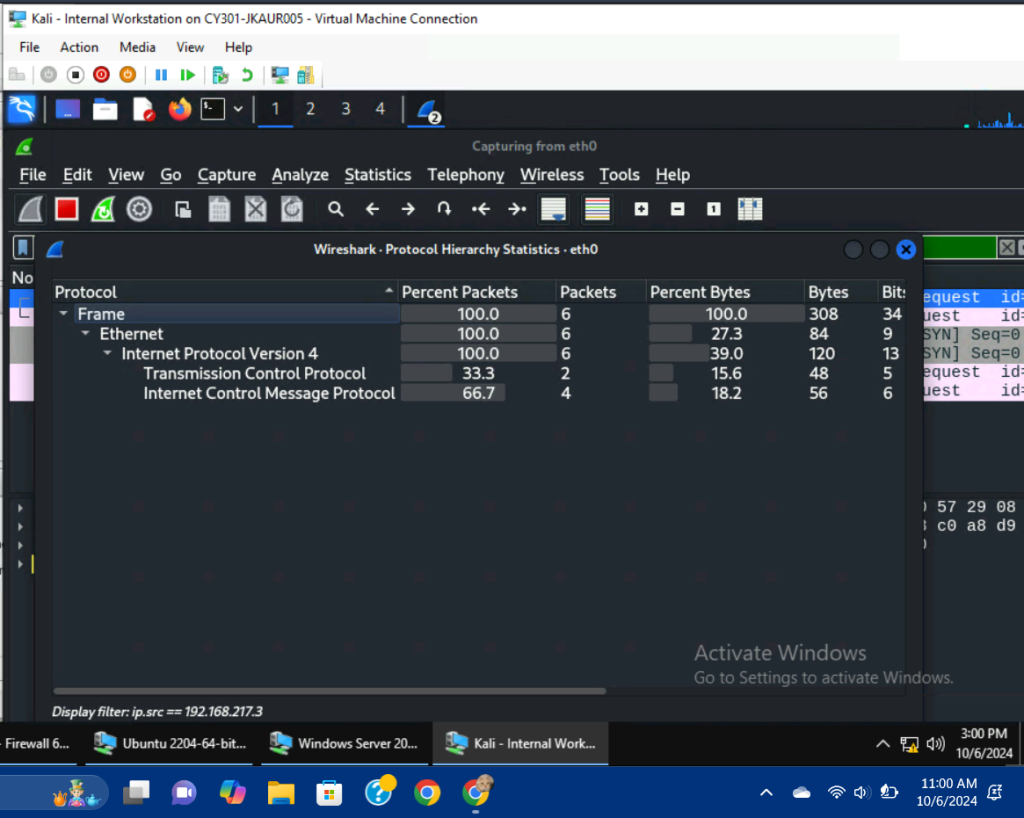
This image displays the Wireshark capture after running the nmap -sP command in External Kali. I utilized the display filter, ip.src == 192.168.217.3 to only display the traffic originating from the External Kali VM.
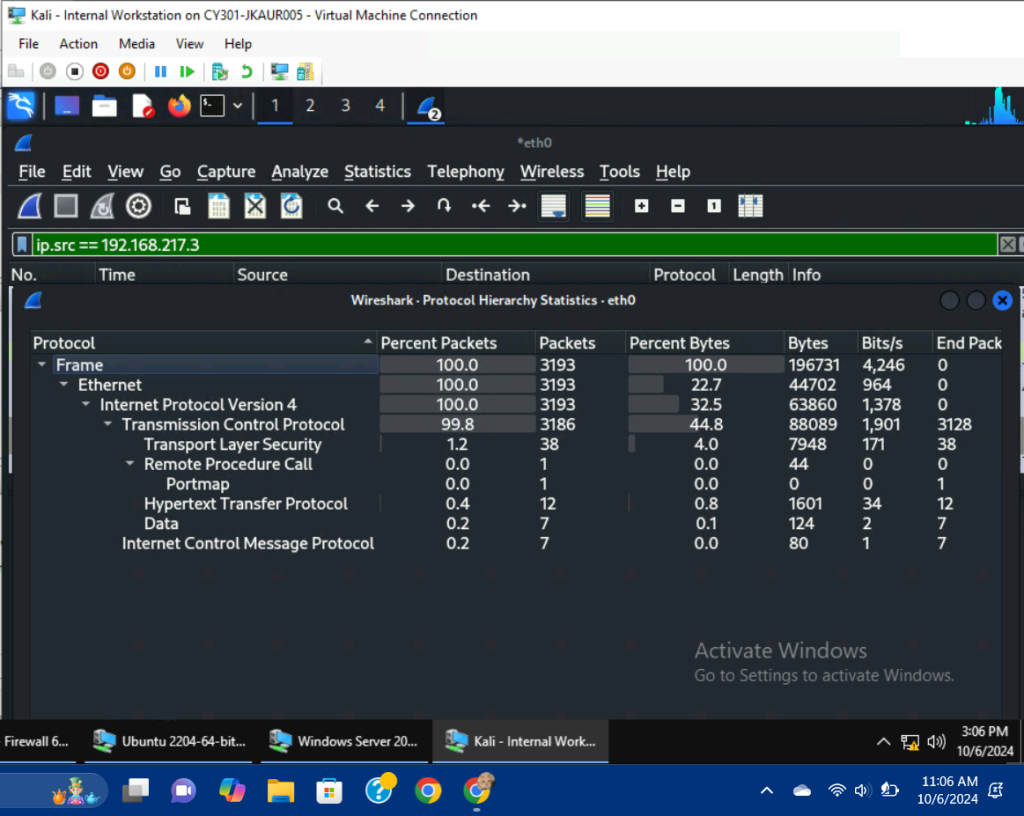
This image displays the Wireshark capture after running the nmap -sV command in External Kali. I utilized the display filter, ip.src == 192.168.217.3 to only display the traffic originating from the External Kali VM.
Analysis: After initiating the nmap -sP command, only six packets were sniffed in total, with three packets being missing from the analysis. The Ubuntu VM and Windows Server 2022 VM both received ping messages from the External Kali machine as demonstrated in the image, but the Internal Kali VM’s packets are missing from the capture. Very minimal traffic was produced following the initial command when compared to the nmap -sV command which produced 3193 packets in total. This could be due to the fact that this command provides a more in-depth summary of each of the VMs, while the nmap -sP command only displays the host’s availability. A regular ping command on any of the VMs would have produced hundreds of packets if left running, due to this we can conclude that the -sP command produces minimal traffic to be discrete and efficient. My display filter also minimized the amount of traffic being captured which greatly improved the readability of the data, and had I not utilized it, outside protocols and unrelated information would have been present within the capture. After applying firewall rules in subsequent steps, much of the traffic from the External Kali VM was limited, with most of the packets being dropped unless specified otherwise by the rules.
TASK B:
- Configure the pfSense firewall rule to block the ICMP traffic from External Kali to Ubuntu VM.
| Rule # | Interface: | Action: | Source IP: | Destination IP: | Protocol (Port # is applicable): |
| 1 (B1) | WAN | Block | 192.168.217.3 | 192.168.10.18 | ICMP |
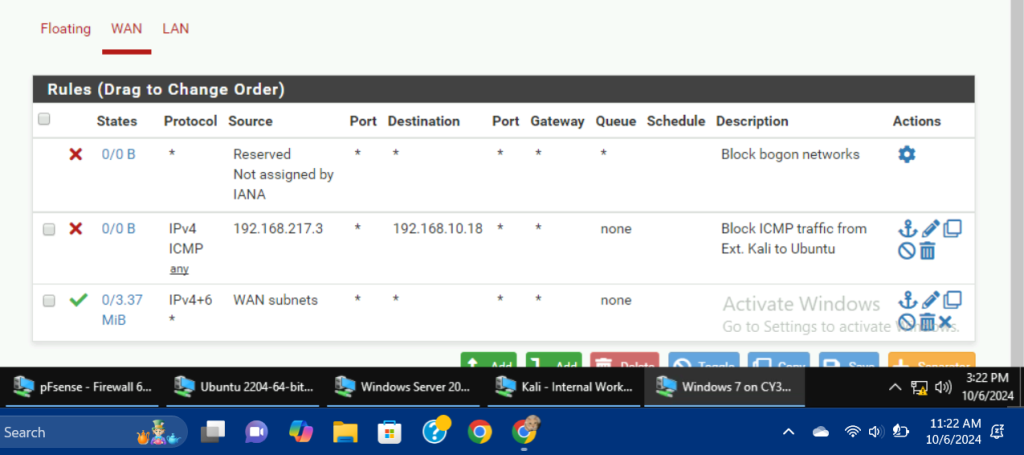
Firewall Rules updated for B1.
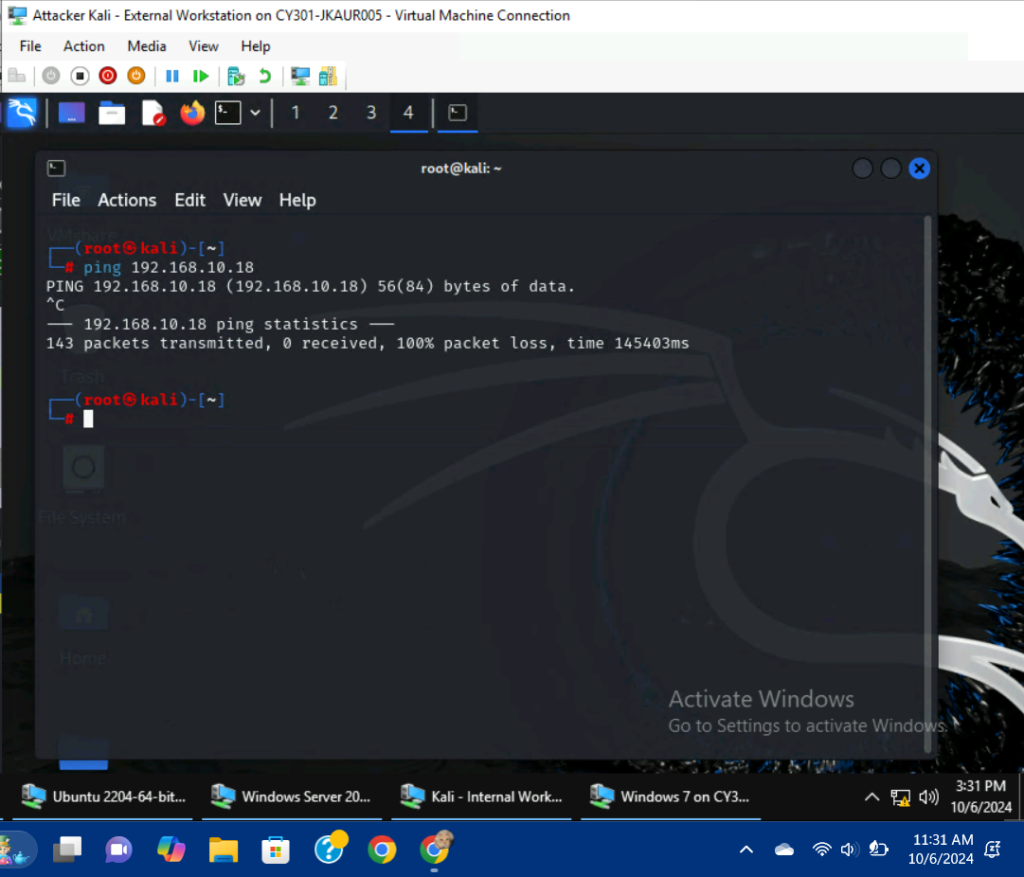
On the External Kali VM, I attempted to ping the Ubuntu VM, but every ICMP packet was lost/blocked in transmission.
- Clear the previous firewall policies and configure the pfSense firewall to block all ICMP traffic from External Kali to the LAN side.
| Rule #: | Interface: | Action: | Source IP: | Destination IP: | Protocol (Port # if applicable): |
| 2 (B2) | WAN | Block | 192.168.217.3 | Any (*) | ICMP |
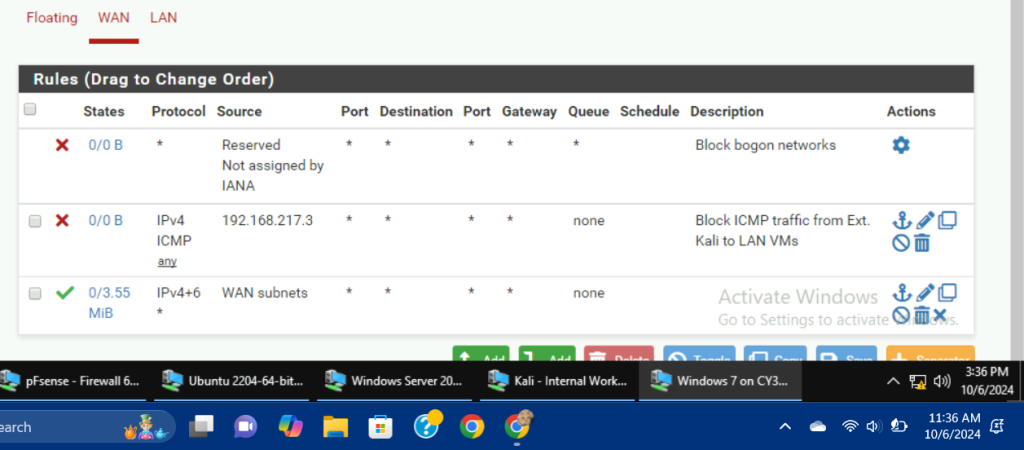
Firewall Rules updated for B2.
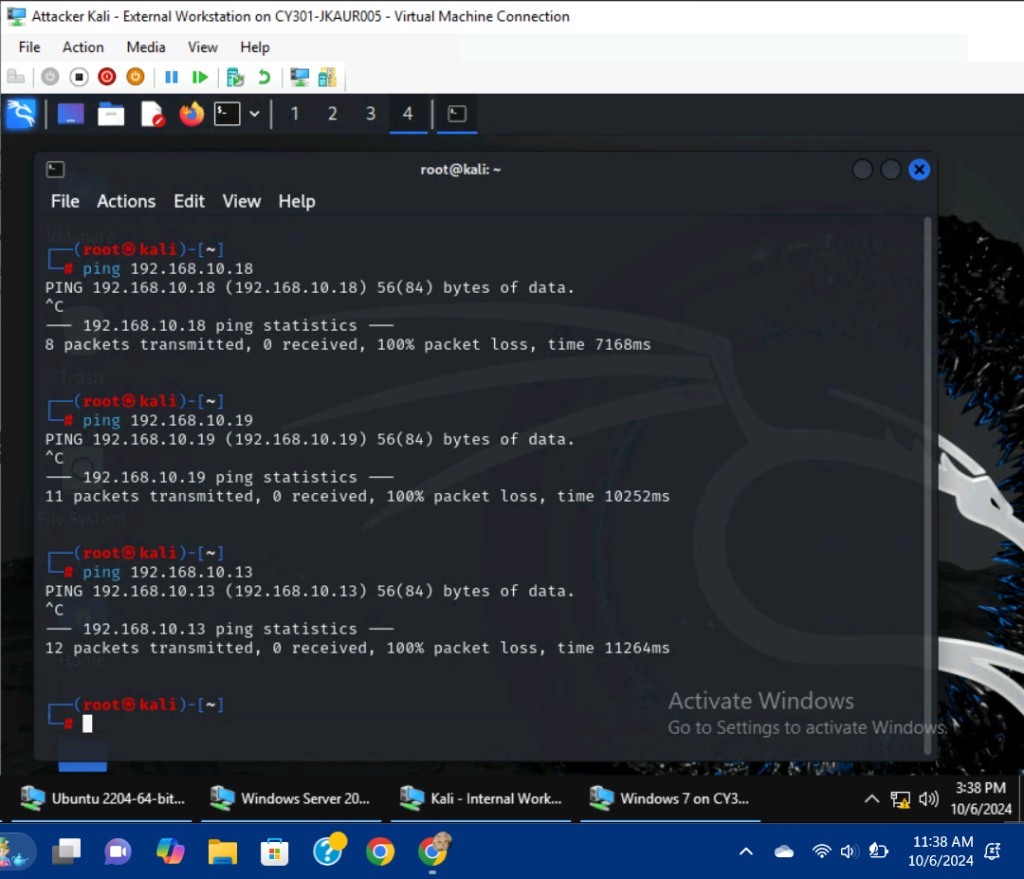
On the External Kali VM, I attempted to ping the three available LAN VMs, but due to the new Firewall policy, all of the ICMP traffic was lost/blocked.
- Clear the previous firewall policies and configure the pfSense firewall to block ALL traffic from External Kali to the LAN side, except for the FTP protocol towards Ubuntu.
| Rule #: | Interface: | Action: | Source IP: | Destination IP: | Protocol (Port # if applicable): |
| 3 (B3) | WAN | Block | 192.168.217.3 | Any (*)/Invert Match for 192.168.10.18 | All (all protocols) |
| Rule #: | Interface: | Action: | Source IP: | Destination IP: | Protocol (Port # if applicable): |
| 4 (B3) | WAN | Block | 192.168.217.3 | Any (*)/Invert Match for 192.168.10.18 | TCP/FTP/21 |
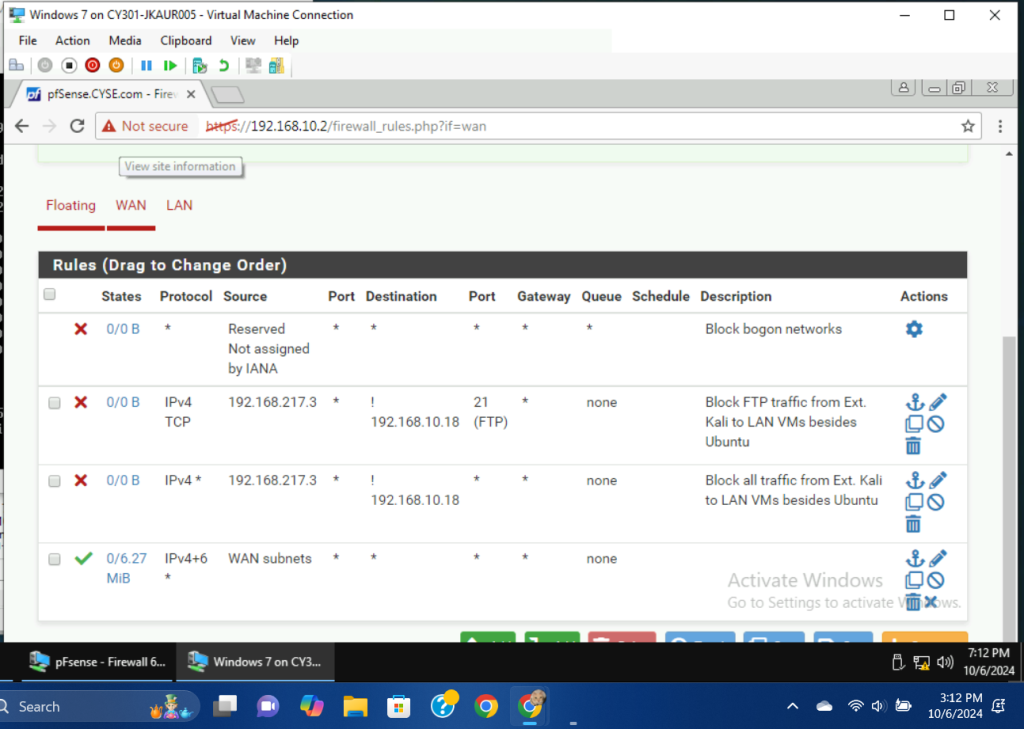
Firewall Rules updated for B3, I utilized two rules to satisfy the requirements.
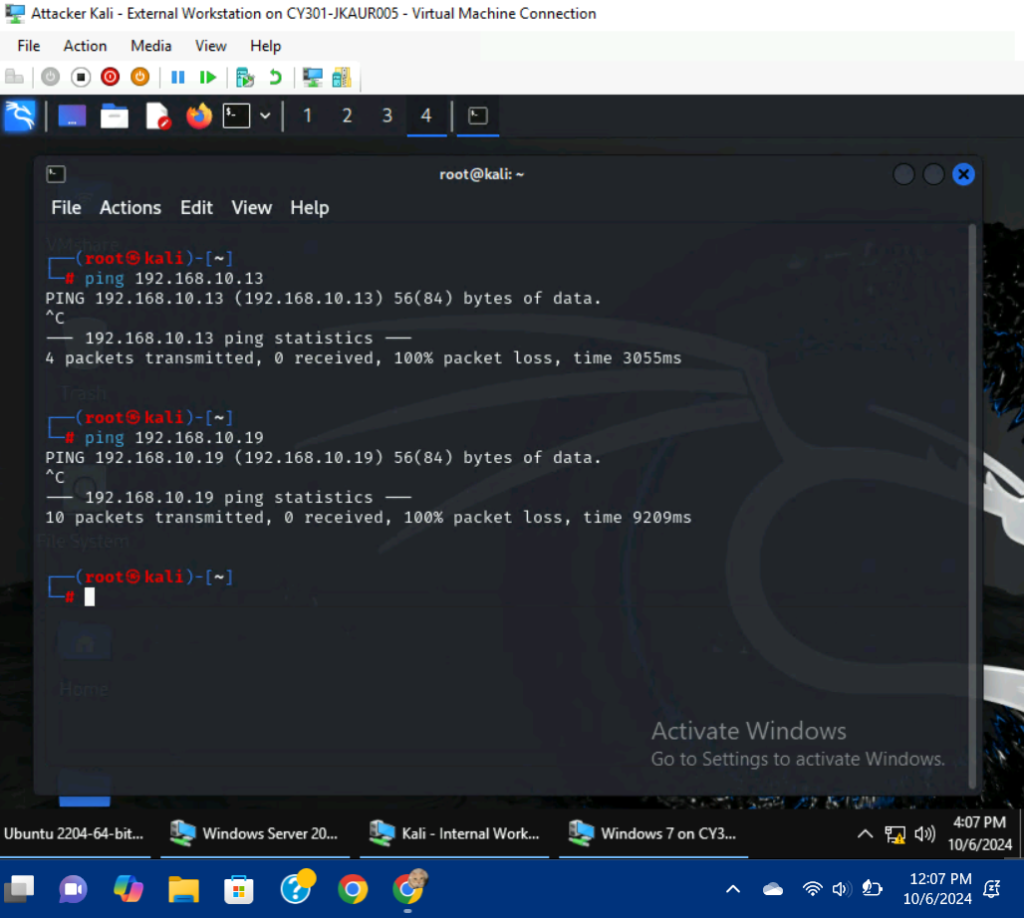
I attempted to ping two of the available LAN VMs, but all the ICMP traffic was blocked/lost.
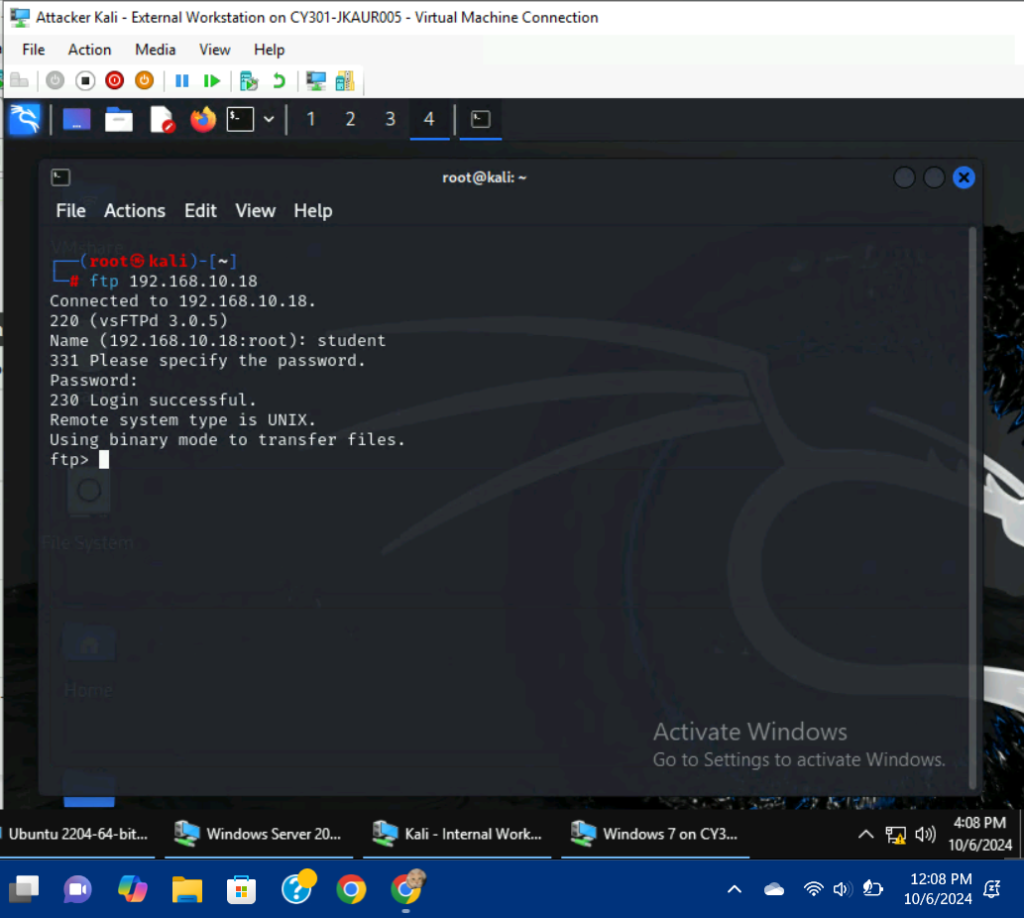
I used the command, ftp 192.168.10.18, to access the file server on Ubuntu. Due to my Firewall rules, I was successfully able to login to the server.
- Keep the firewall policies you created in Task B.3 and repeat Task A.1. What’s the difference?
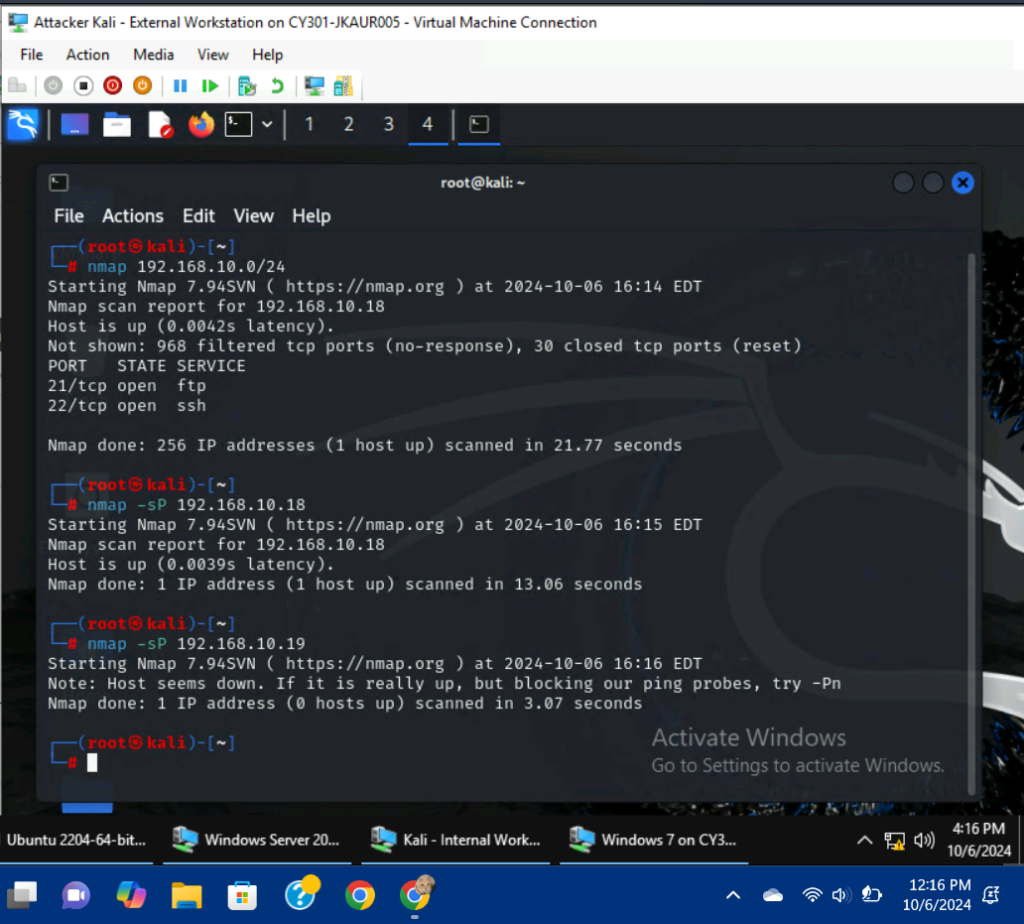
After executing the nmap 192.168.10.0/24 command, my results this time were different. Only one VM(Ubuntu) was reported as up with only two ports active, FTP and SSH. I also performed the nmap -sP command on the Ubuntu VM and the Windows Server 2022 VM. The Windows Server 2022 VM was reported as down.
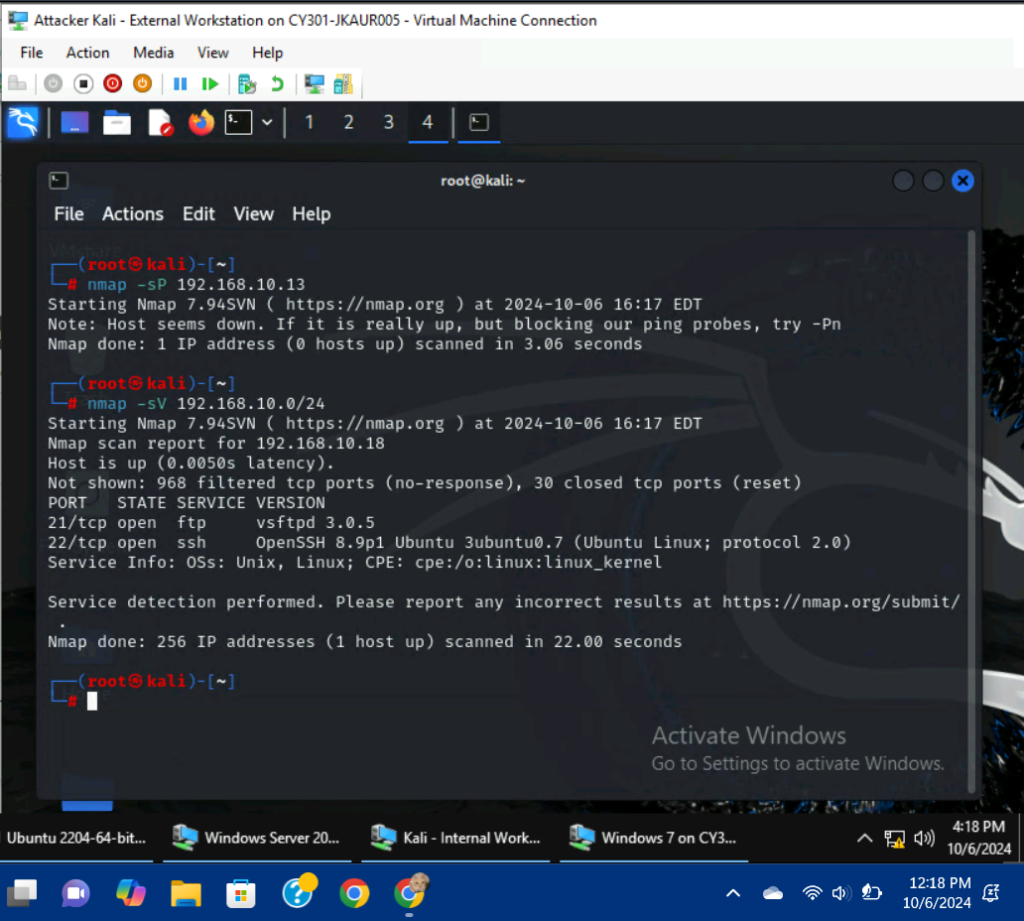
I performed the nmap -sP command on the Internal Kali machine and the host was determined be to down. I performed the nmap -sV 192.168.10.0/24 command and only received information for one VM, the Ubuntu VM.
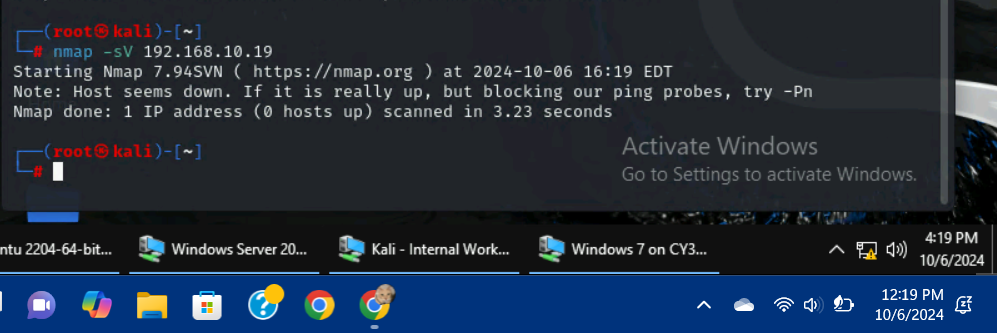
I performed the nmap -sV 192.168.10.19 command on the Windows Server 2022 VM and the host was determined to be down.
Extra Credit:
Use NESSUS to enumerate the security vulnerabilities of Microsoft Windows Server 2022 VM in the CCIA network:
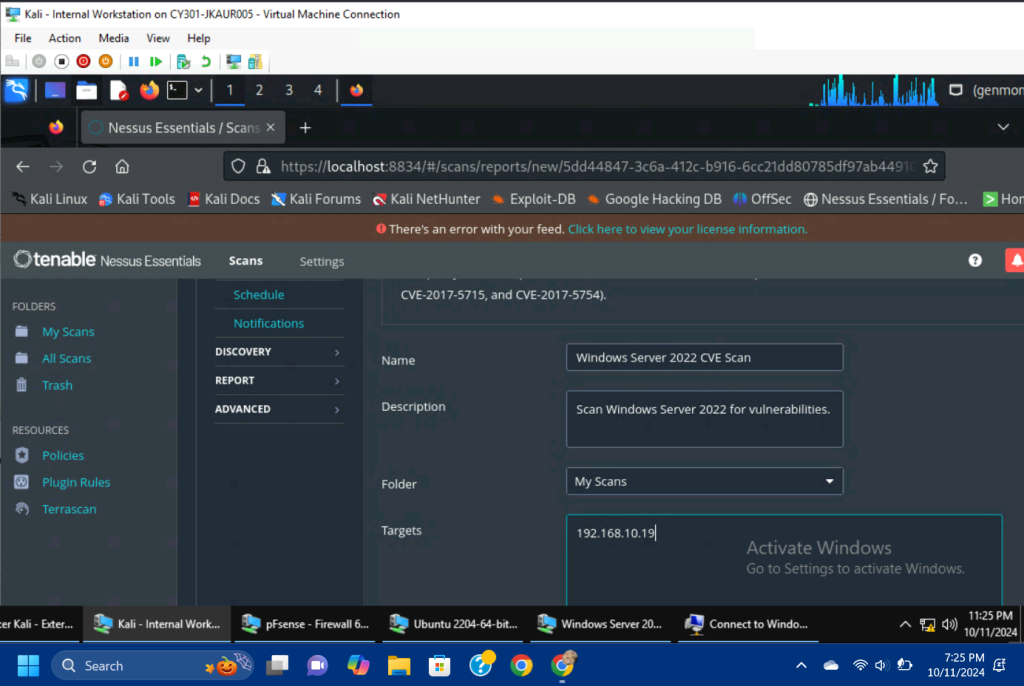
I began a Nessus scan on the Internal Kali VM, utilizing the CVE scanner. Since the scan’s target was the Windows Server 2022 VM, I entered 192.168.10.19 as the target IP.
Results:
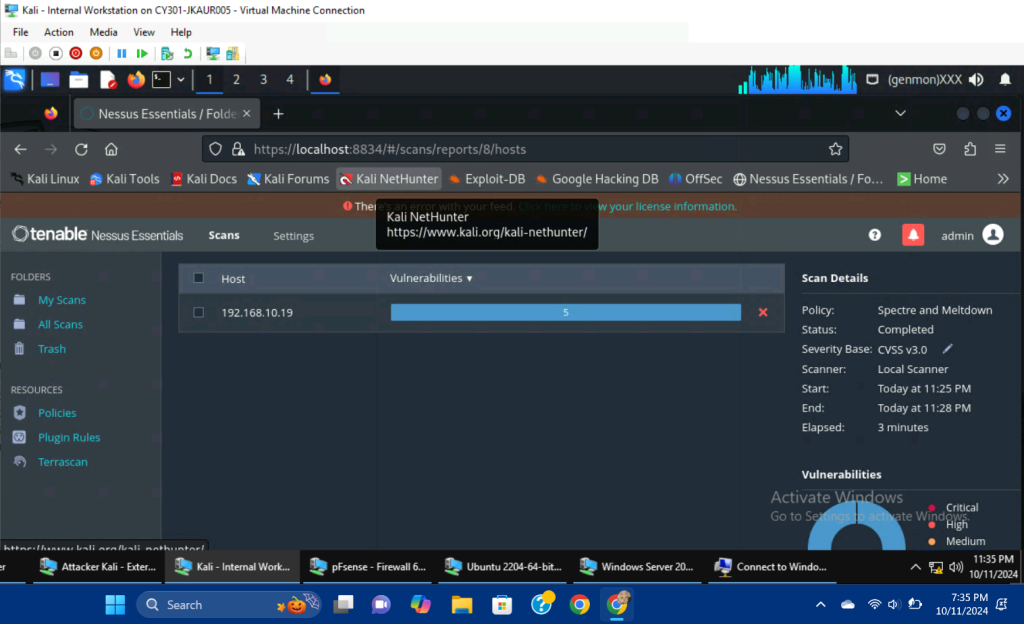
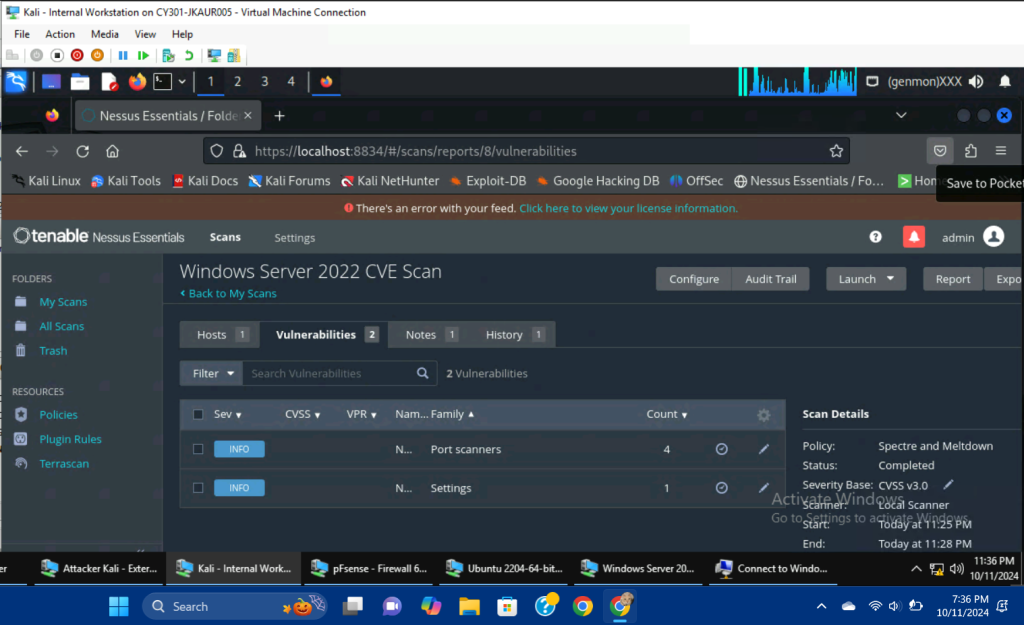
There were two vulnerabilities found via the scan, neither of which was of high priority.